Azure Dedicated SQL pool is a distributed analytics service in Azure which is used for data warehousing, business intelligence, and analytics workloads. It is designed to handle large volumes of data and support complex analytical queries.
If you or your organization uses Azure to handle data, then you must be using Azure Dedicated SQL pool for your Data warehousing needs.
Azure Dedicated SQL pool (SQL DW) has many benefits like Massive parallel processing (MPP) architecture to scale compute and storage resources independently, allowing for high-performance analytics but one big issue with this Azure resource is the cost associated with it. Microsoft charges Dedicated SQL Pool on Hourly basis, so it means then you must pay when the SQL DW is on even if you are not using it for development or analysis.
It makes sense to stop the SQL DW resource when not in use. Now question is how you stop the DW.
- You can go to the SQL DW resource and stop the service from there, but it becomes a tedious task as this is a manual approach and you need to remind yourself to pause and resume the service when needed.
- You can use Azure Data Factory pipeline to automate the Pause and Resume process of DW.
Let’s see how to use Azure Data Factory to Pause and Resume Dedicated SQL pool.
You need to have below details before building the Azure Data factory pipeline:
Subscription ID
Resource Group name
SQL Server name
Dedicated SQL Pool name
Access required for the process:
Azure Data Factory’s managed Identity should have Contributor access to the SQL server.
Now that everything is sorted, let’s start the process:
First, we are going to build a pipeline to Pause the Dedicated SQL pool:
Step 1: Launch Azure Data Factory.
Step 2: Create a new pipeline.

Step 3: Drag Web activity from the General Activities in the canvas and name it ‘PauseSQLDW’.

Step 4: Fill in the details in the setting window.
URL: https://management.azure.com/subscriptions/Enter your Subscription ID/resourceGroups/Enter Resource Group Name/providers/Microsoft.Sql/servers/Enter the Name of the SQL Server/databases/Enter the name of the Dedicated SQL Pool/pause?api-version=2020-08-01-preview
Method: POST
Body: {}
Authentication: System Assigned Managed Identity
Resource: https://management.core.windows.net
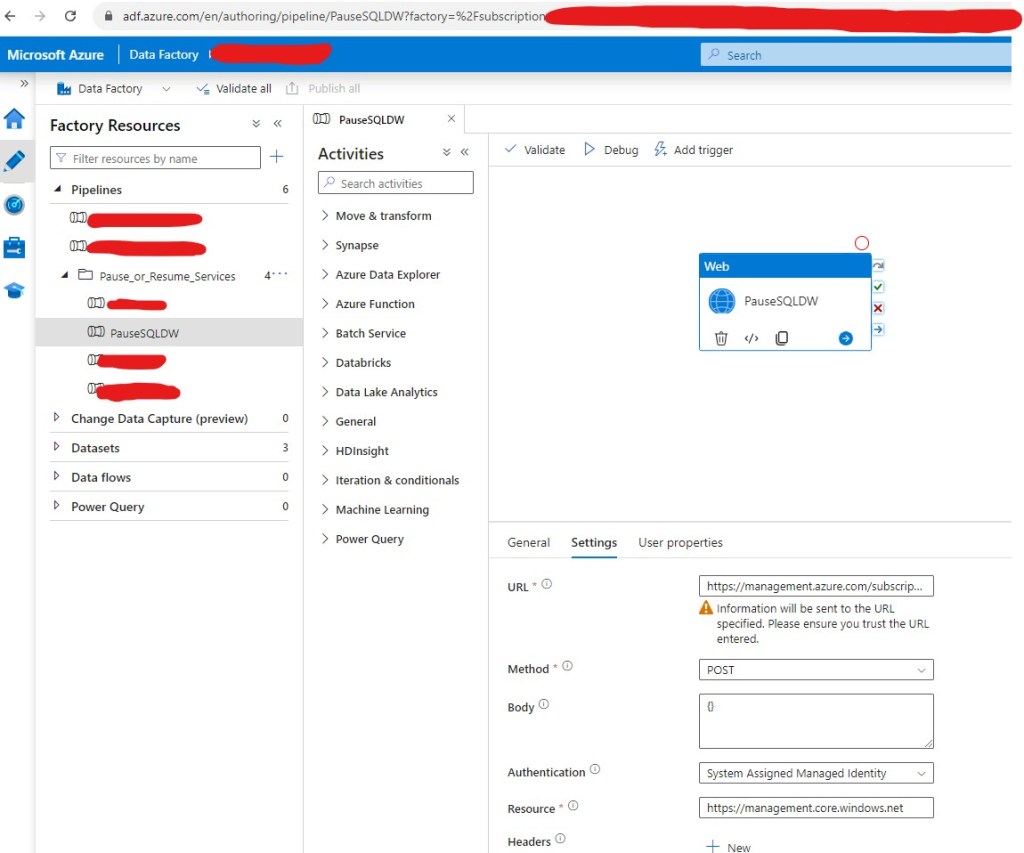
Step 5: Click Debug.
Step 6: Once the pipeline succeeds, check if the SQL DW is paused or not. If it is paused, then the pipeline is working.
Step 7: Click Publish.
You are done.
Now let’s see how to Resume Dedicated SQL pool when it’s paused.
You can use the same step you used for pausing the Dedicated SQL Pool with a small change, just change the URL in the settings window in the ADF pipeline mentioned in step 4.
URL: https://management.azure.com/subscriptions/Enter your Subscription ID/resourceGroups/Enter Resource Group Name/providers/Microsoft.Sql/servers/Enter the Name of the SQL Server/databases/Enter the name of the Dedicated SQL Pool/resume?api-version=2020-08-01-preview
Ready to elevate your skills? Click here for my Python book and here for my Machine Learning book on Kindle.
 Ization
Leave a comment