Copying files from SharePoint to Datalake or any other target location is one task you cannot ignore as a Data Engineer. Someday someone for sure is going to ask you to do that.
So, how can you achieve that?
Suppose we need to copy an excel file from SharePoint to Datalake Gen 2.
You need to do this task in three phases.
Phase 1: Setting up an app-only principal
You need to create a principal which can access the SharePoint folder.
You can do that by following the steps below:
Step 1: Go to your SharePoint site.

Step 2: Add ‘ /_layouts/15/appregnew.aspx ’ to the URL and click enter.

It would take you to another page, like the one shown below:
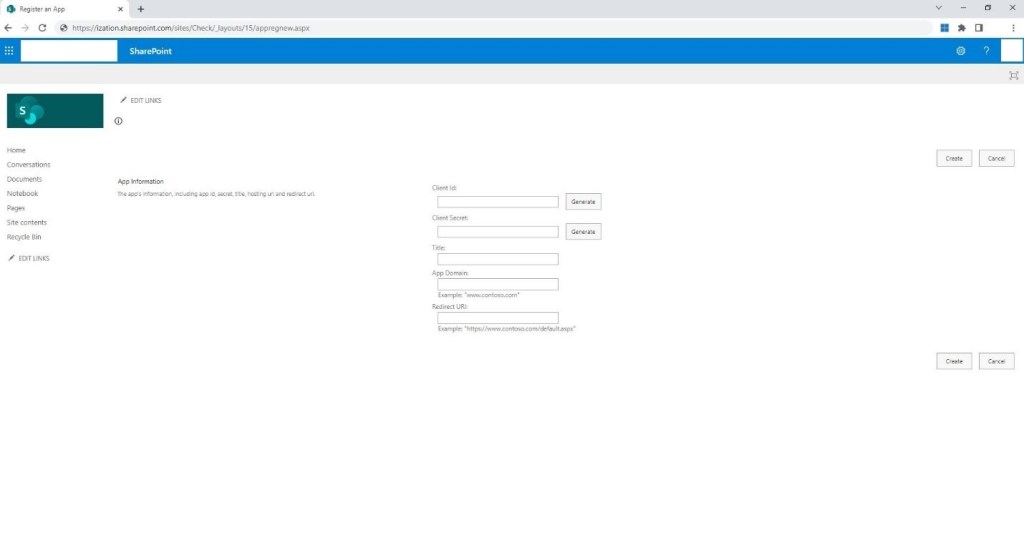
Step 3: Click on Generate Client Id, Generate Client Secret and type the required details in the text boxes provided below:
Title
App Domain
Redirect URI

Step 4: Click on Create.

Step 5: Copy the Client ID and Secret and keep them handy. Click on Ok.
Now that app has been created, let’s move to Phase 2.
Phase 2: Granting permissions to the newly created principal.
You need to be owner or member of the SharePoint site to grant permission.
Step 1: Paste the URL ‘https://CompanyName.sharepoint.com/sites/SiteName/_layouts/15/appinv.aspx’ in your browser and click enter.
Example: https://ization.sharepoint.com/sites/Check/_layouts/15/appinv.aspx

Step 2: Add the Client Id of the principal you created in phase 1 and click look up. Details of your principal should appear in the text boxes below.
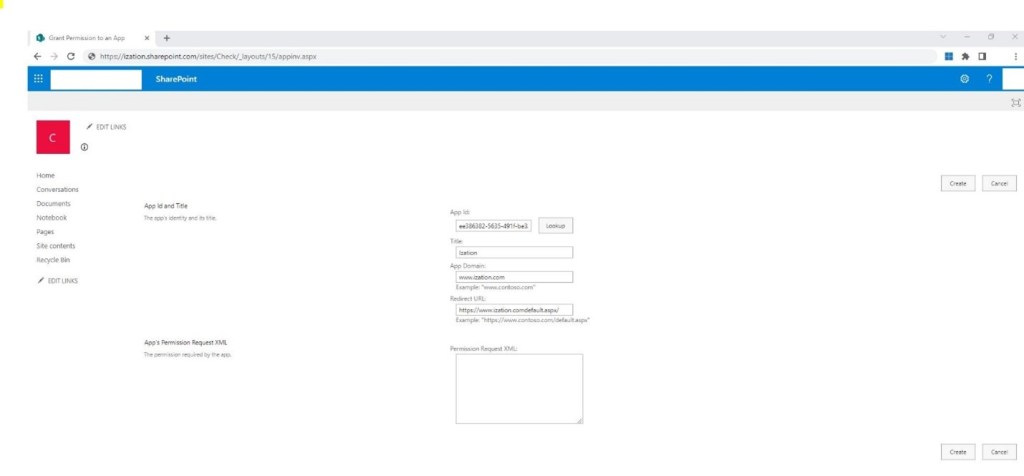
Step 3: Paste the below XML code in the Text box named Permission Request XML: and click Create.
<AppPermissionRequests AllowAppOnlyPolicy="true">
<AppPermissionRequest
Scope="http://sharepoint/content/sitecollection"
Right="Read"/>
</AppPermissionRequests>
Step 4: You’ll be presented with a permission consent dialogue. Click Trust It to grant the permissions:
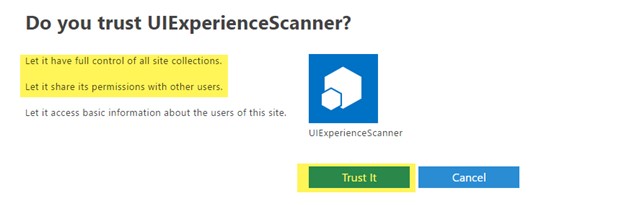
Now your principal is ready to be used in Azure Data Factory. We can move to Phase 3 now.
Phase 3: Setting up Pipeline in Azure Data Factory
Step 1: Go to Azure Data Factory
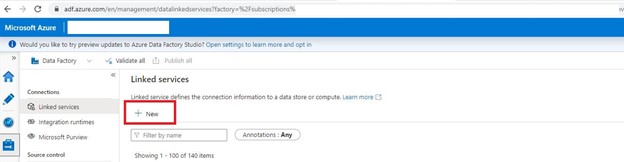
Step 2: Creating Linked service for SharePoint. Go to Mange page and click Linked services. Click on New.
Step 3: Search for HTTP, select it and click Continue.
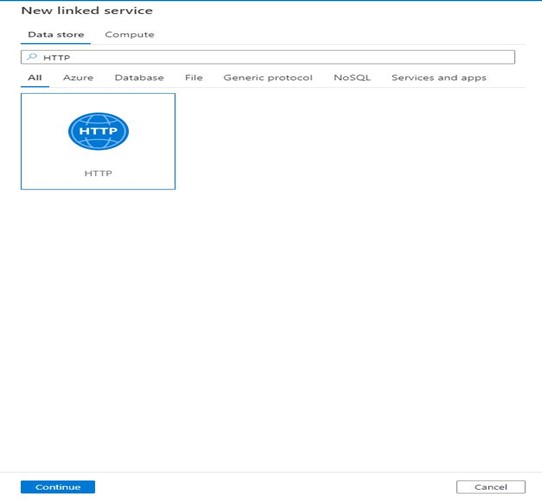
Step 4: Fill the name of the linked service, Provide the URL of the SharePoint file, choose Authentication Type as Anonymous and click Create.
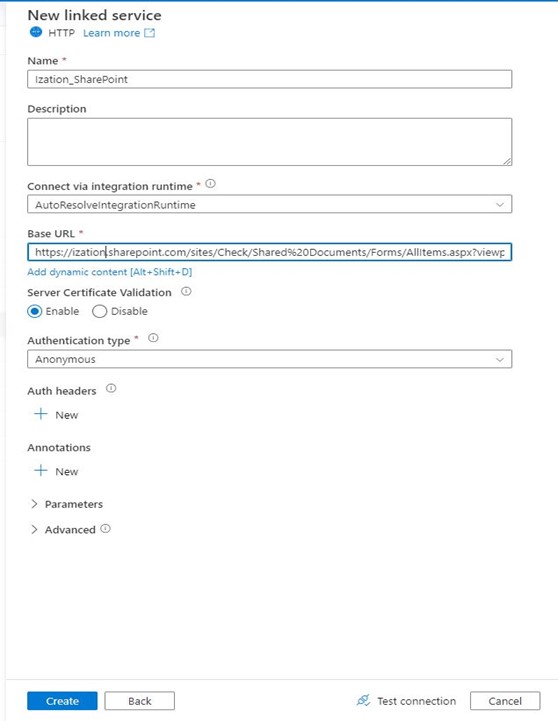
Step 5: Creating Dataset for SharePoint. Go to Author section of Azure Data factory and click the + sign, then select Dataset.
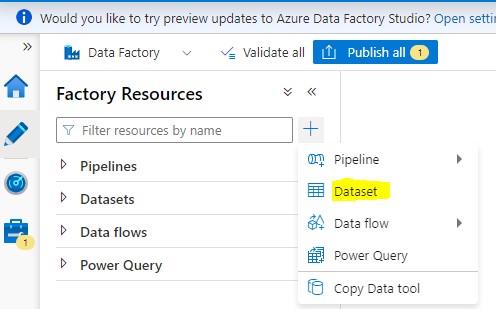
Step 6: Search for HTTP, select it and click Continue.
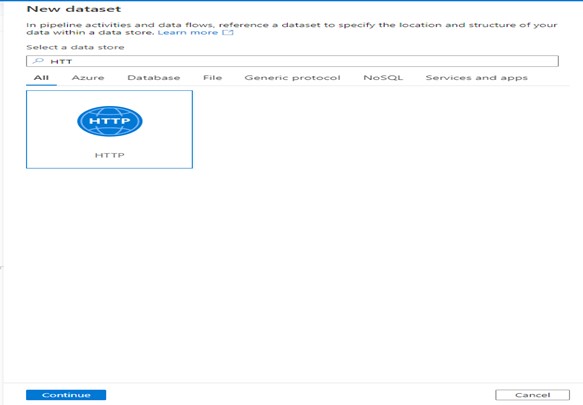
Step 7: Select Binary format and click Continue.
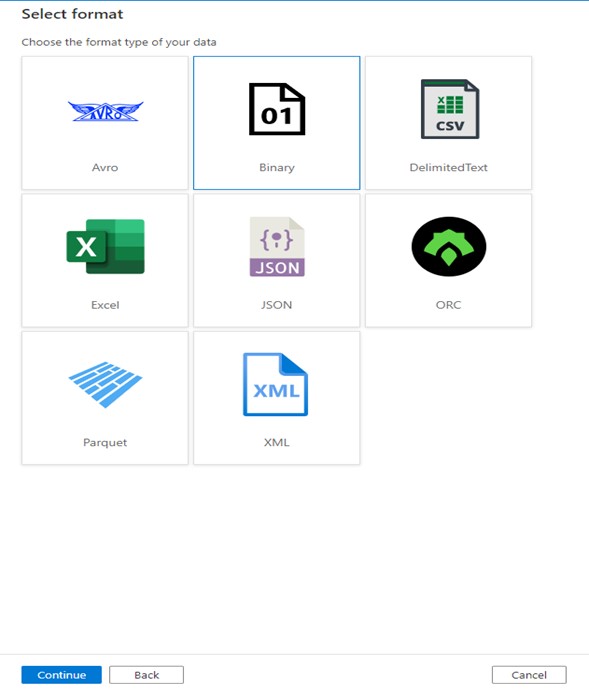
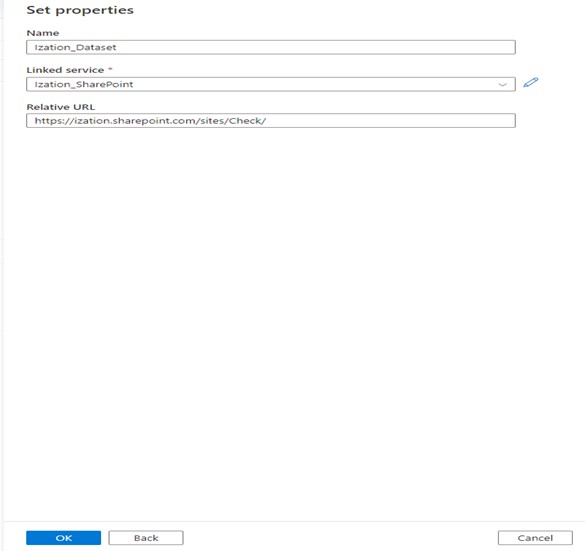
Step 8: Set the name of the Dataset, select the linked service from Dropdown, provide the value for Relative URL and Click OK.
Now let’s create the linked service and Dataset for Datalake Gen2.
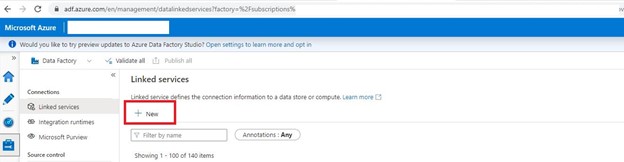
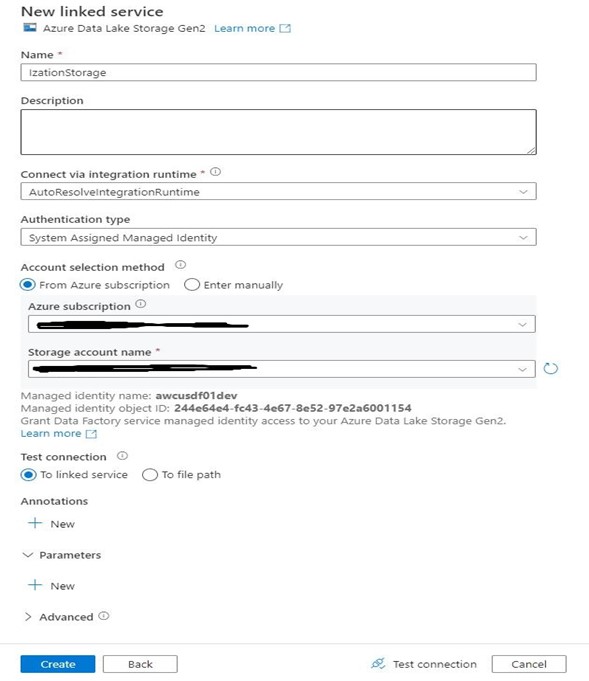
Step 9: Go to Mange page and click Linked services. Click on New.
Step 10: Search and select Azure Data Lake Storage Gen2 and click Continue.
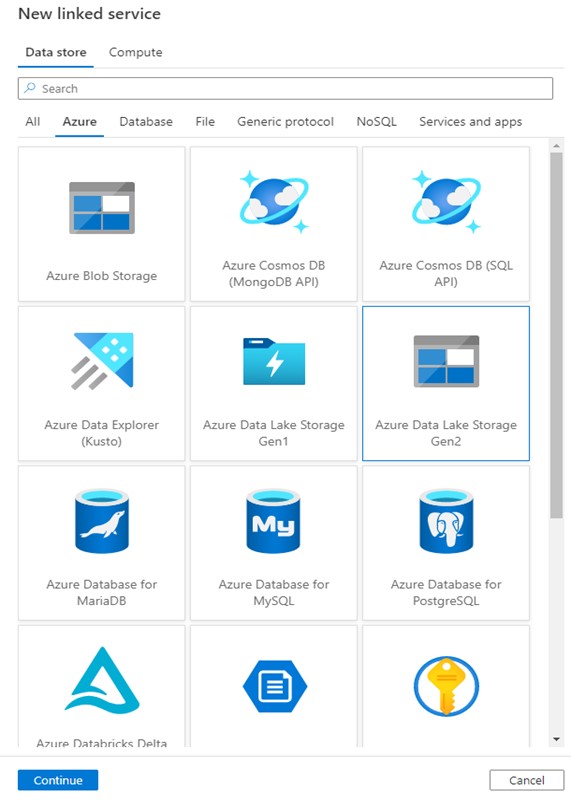
Step 11: Fill in the details and click Create.
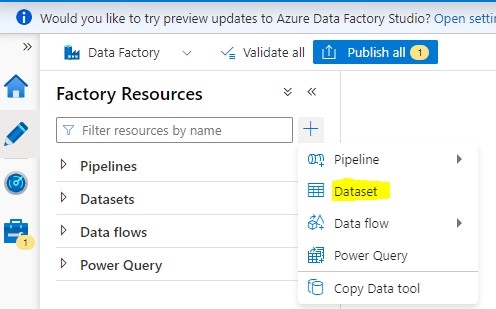
Step 12: Go to Author section of Azure Data factory and click the + sign, then select Dataset.
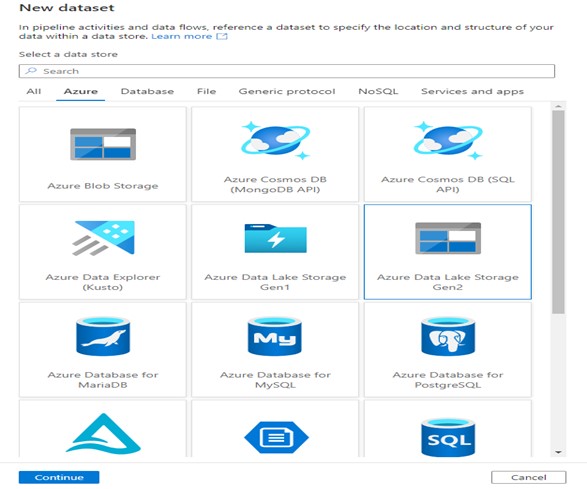
Step 13: Search and select Azure Data Lake Storage Gen2 and click Continue.
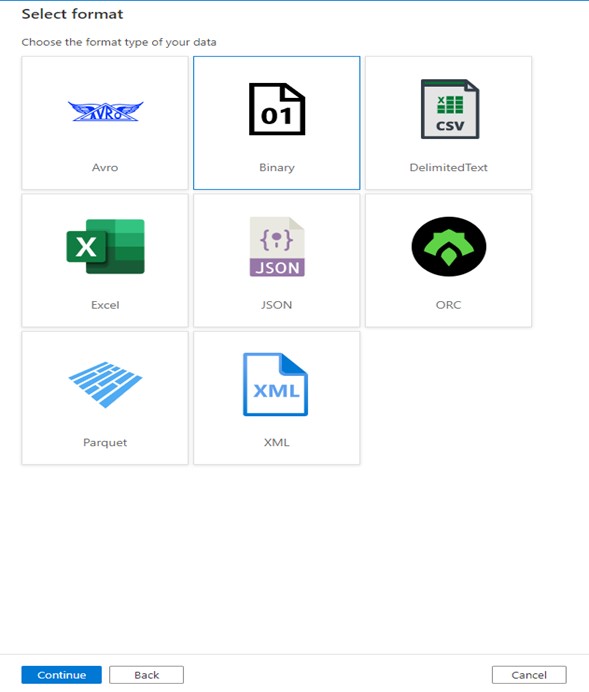
Step 14: Select Binary format and click Continue.
Step 15: Set the name of the Dataset, select the linked service from Dropdown, provide the File path and click OK.
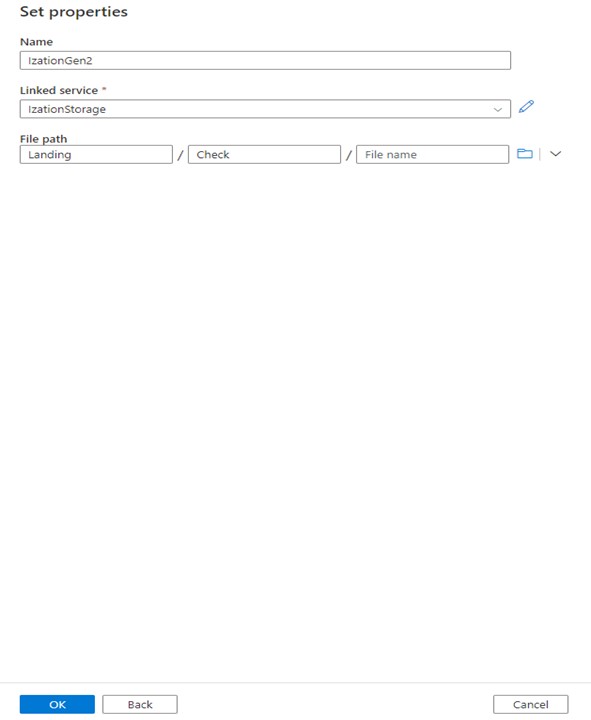
Next step is to create the Pipeline.
Step 16: Go to Author section of Azure Data factory and click the + sign, then select Pipeline and click Pipeline.

Step 17: Set the name of the pipeline in the Properties Window.
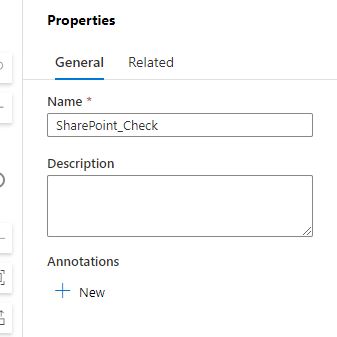
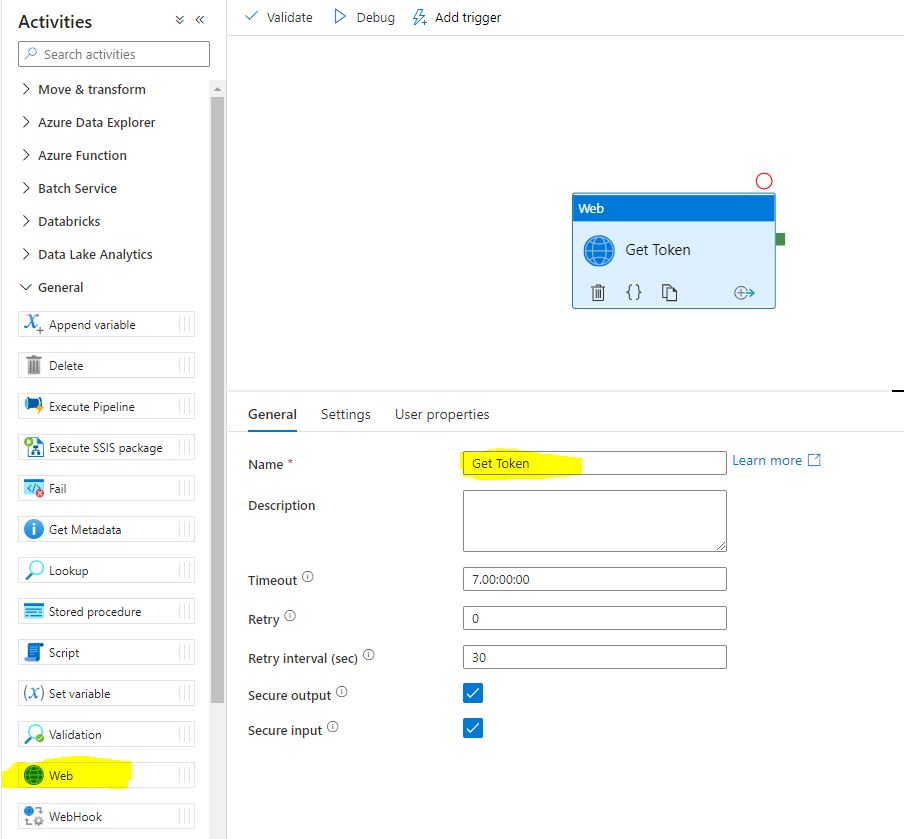
Step 18: In the Activities toolbox, expand the General category, and drag and drop the Web activity from the toolbox to the pipeline designer surface. Specify Get Token for Name.
Step 19: Click on Settings, then fill required details in the Text Boxes.
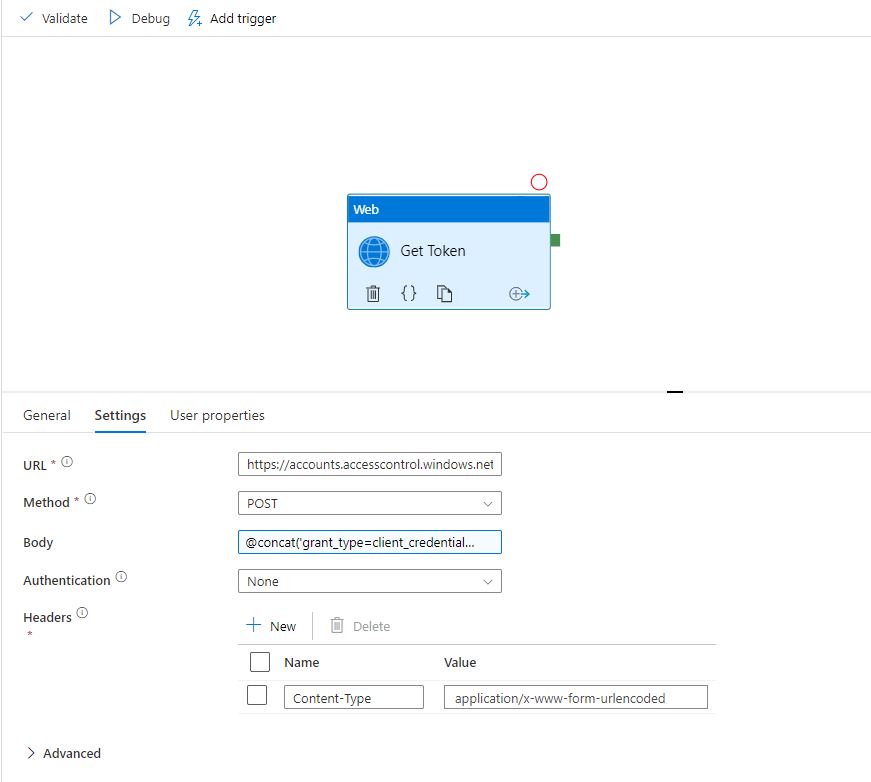
URL: https://accounts.accesscontrol.windows.net/YourTenent ID/tokens/OAuth/2
Method: POST
Body: @concat(‘grant_type=client_credentials&client_id=YourClientID@YourTenentID&client_secret=YourClientSecret&resource=00000003-0000-0ff1-ce00-000000000000/ization.sharepoint.com@YourTenentID‘)
Example: @concat(‘grant_type=client_credentials&client_id=123@abc&client_secret=123_a&resource=00000003-0000-0ff1-ce00-000000000000/ization.sharepoint.com@abc‘)
Authentication: None
Headers: Click + Sign near New, Add Name as Content-Type and Value as application/x-www-form-urlencoded
Step 20: In the Activities toolbox, expand the Move and Transform category, and drag and drop the Copy Data activity from the toolbox to the pipeline designer surface. Specify CopyFromSharePointToGen2 for Name.
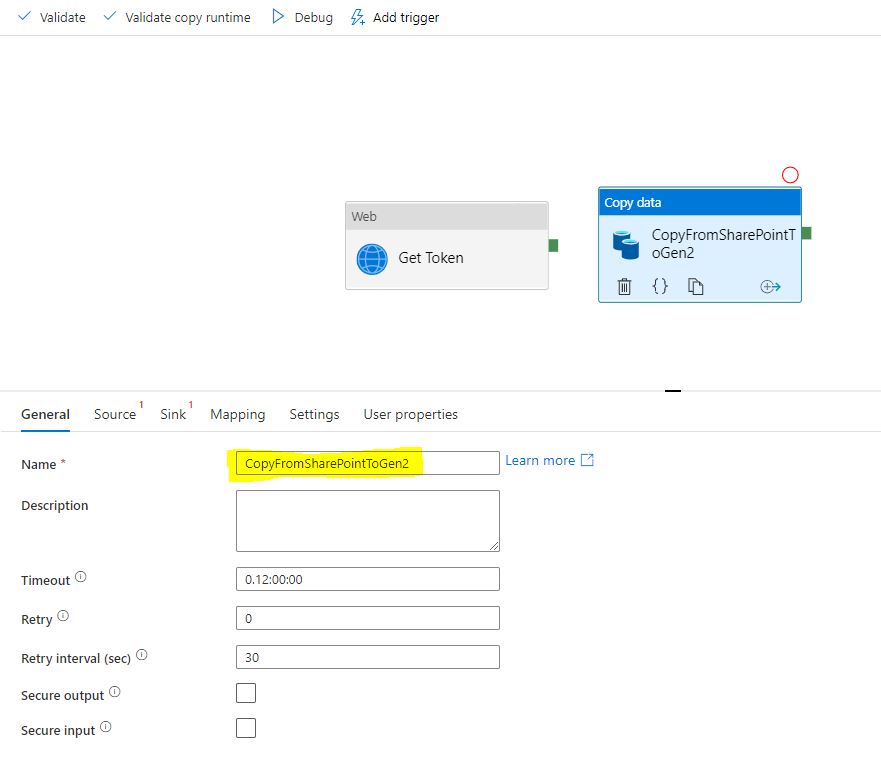
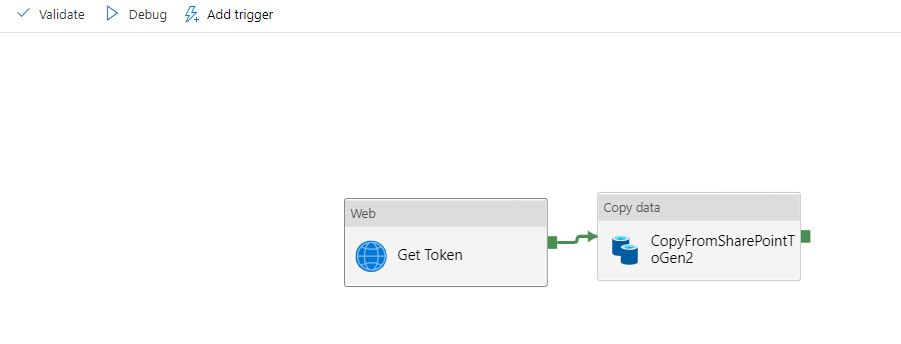
Step 21: Drag Green mark from Web activity and drop it to Copy Data activity to create a flow between them.
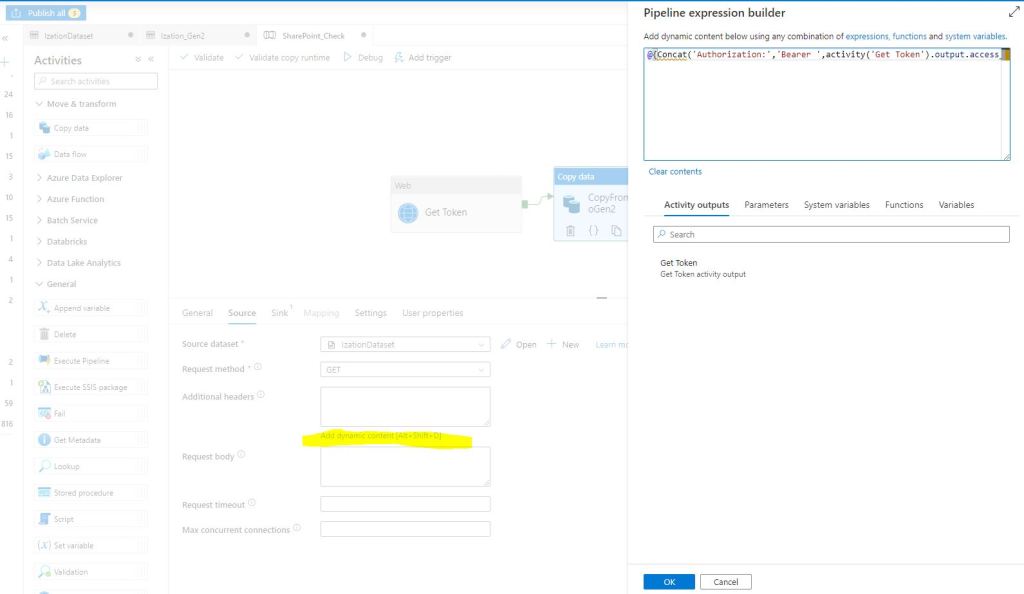
Step 22: Click on Copy data activity, go to the Source tab. Select the SharePoint dataset you created in the previous steps as Source dataset and Select GET as Request Method.

Step 23: Click inside the text box Additional headers, selectAdd dynamic content [Alt+Shift+D], add the code provided below and click OK:
@{Concat(‘Authorization:’,’Bearer ‘,activity(‘Get Token’).output.access_token)}
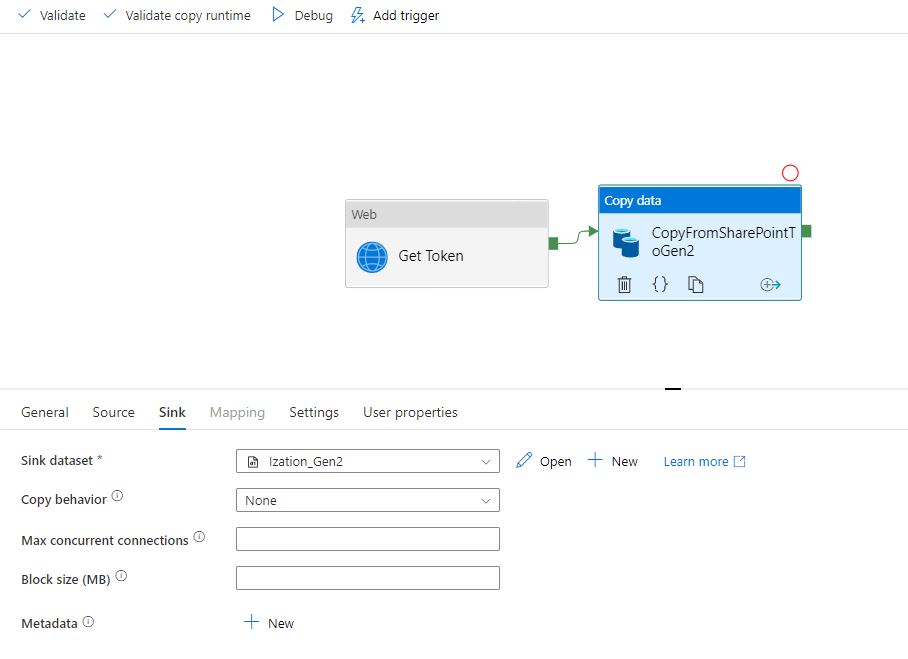
Step 24: Go to the Sink tab and Select the Datalake Gen2 dataset you created in the previous steps as Sink dataset.
Step 25: Now your pipeline is ready, Click on Debug to check if it’s running as expected.
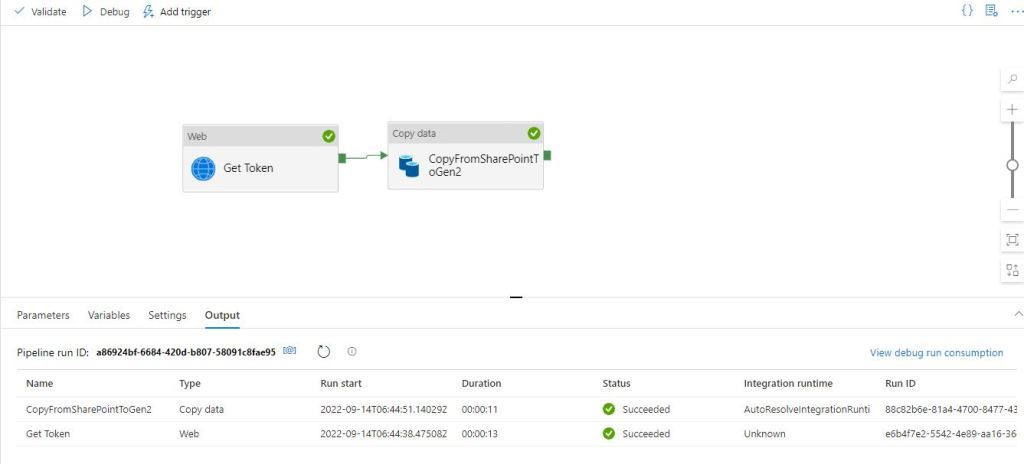
Step 26: Click on Publish to save your work.
With this we are done. Happy Learning.
Ready to elevate your skills? Click here for my Python book and here for my Machine Learning book on Kindle.
 Ization
What if you need to copy the contents of a whole folder to azure file storage and that folder also could contain folders with files within?
LikeLike
hi, did you find a way to copy folders too ?
LikeLike
i could only copy files in a folder but not other folders…any help ?
LikeLike
Hi,
I have added another post on how to copy all the files from a folder in SharePoint to the data lake.
Hope this helps.
Thanks
LikeLike
Please try ADF Template ‘Copy multiple files containers between File Stores’
You can learn more by going though the link : https://learn.microsoft.com/en-us/azure/data-factory/solution-template-copy-files-multiple-containers
LikeLike