Working with large datasets? Looking for a way to convert JSON data into the efficient and optimized Parquet format in Azure Data Lake? You’re in the right place!
Azure Data Factory (ADF) makes this process smooth by allowing you to extract data from a JSON source and store it as a Parquet file, ensuring better performance, compression, and query efficiency.
In this step-by-step guide, we’ll go through the exact process of creating Linked Services, defining datasets, and setting up a Copy Activity to seamlessly transfer your JSON data to Parquet format.
Step 1: Create a Linked Service for Azure Data Lake Gen2
Since both our source and target are in Azure Data Lake Storage Gen2, we need to first create a Linked Service to establish the connection.
1. Go to Azure Data Factory.

2. Click on the Suitcase icon (Manage), then click on Linked Service and select New.

3. Search for Azure Data Lake Storage Gen2, select it, and click Continue.

4. Fill in the required details:
Name: Enter a meaningful name.
Authentication method: Choose the correct authentication type.
Storage Account Name: Select your storage account.
5. Click Create.

Step 2: Create the JSON Dataset (Source)
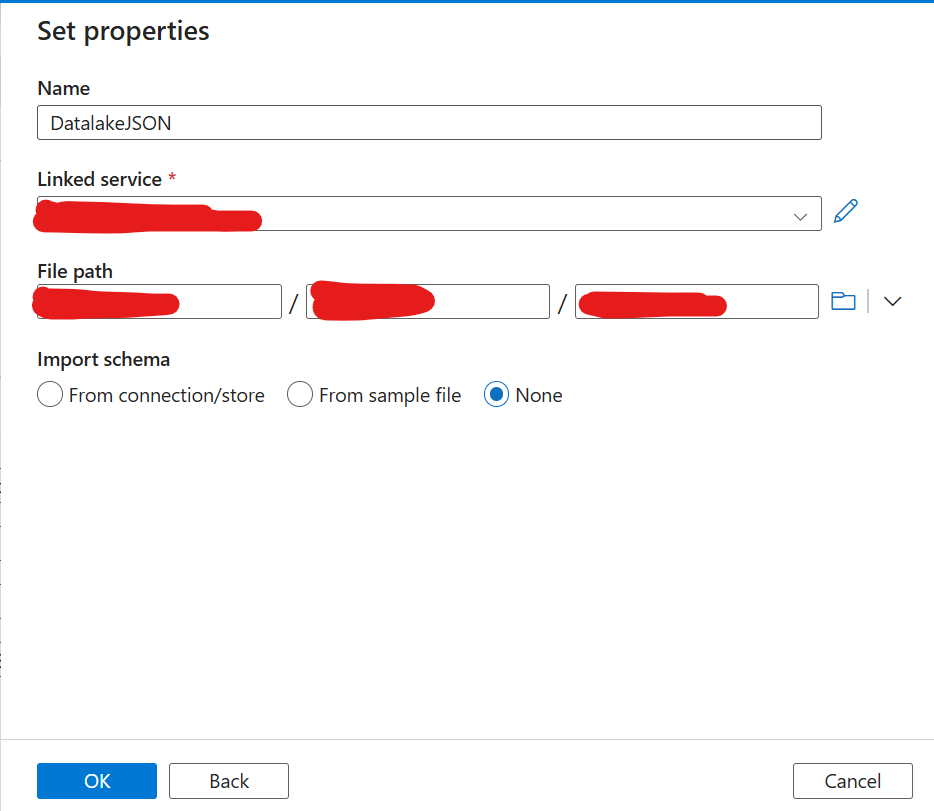
Now that the Linked Service is set up, let’s create the Source Dataset for JSON.
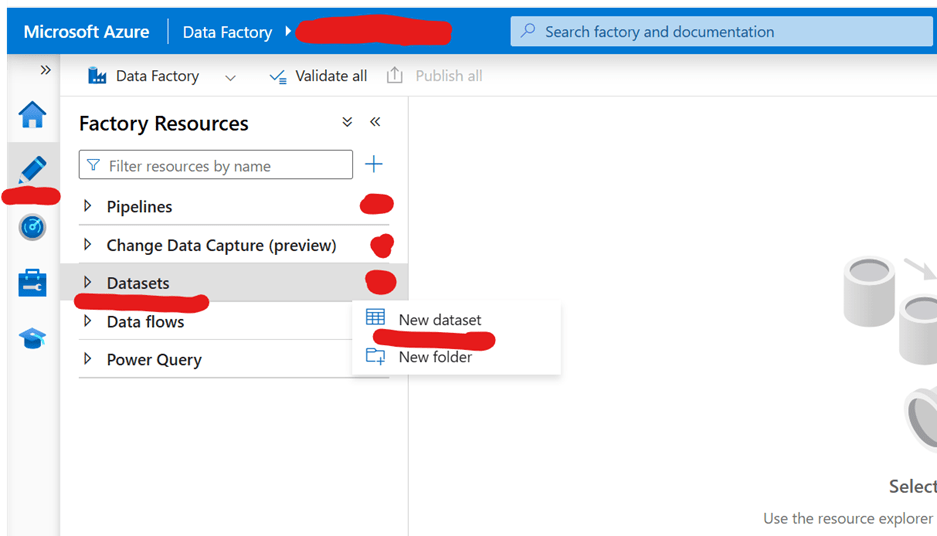
1. Click on the pencil (Author) icon, go to Dataset, and select New Dataset.
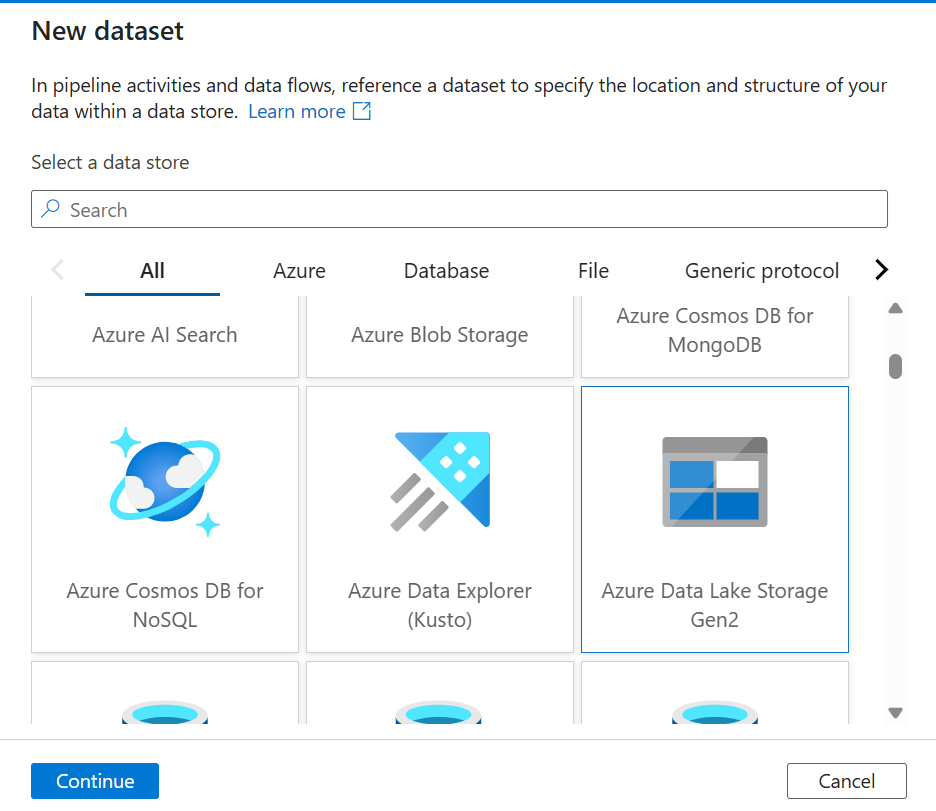
2. Look for Azure Data Lake Storage Gen2, select it, and click Continue.
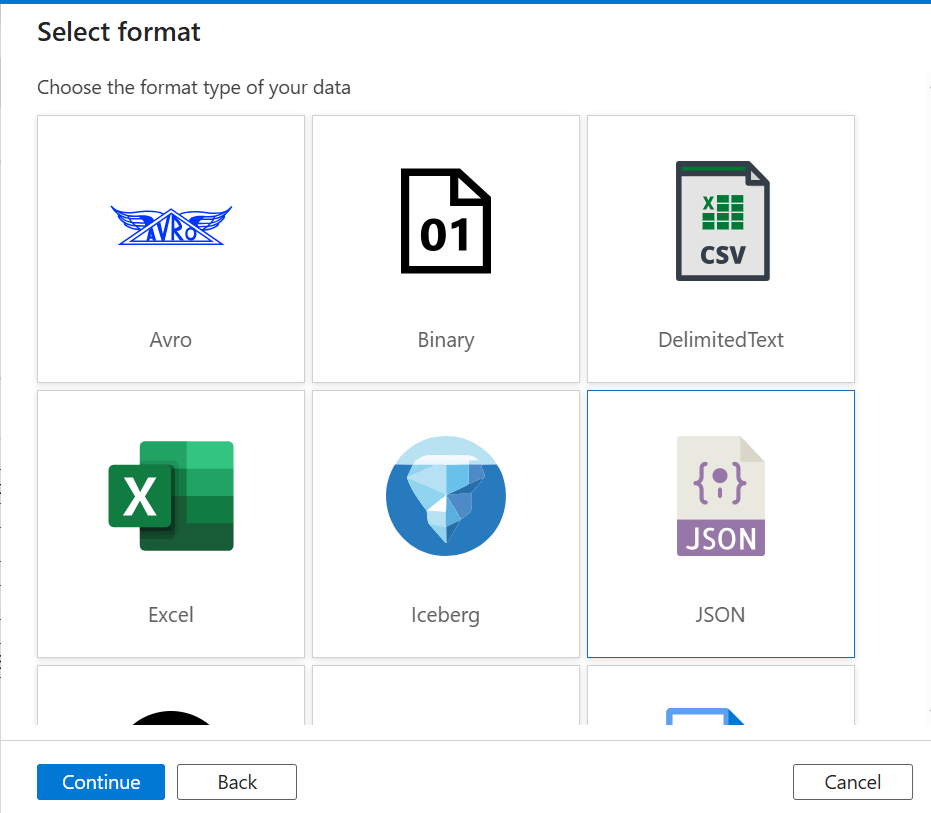
3. Choose JSON as the format and click Continue.
4. Fill in the details:
Browse and select the location of the JSON file in Azure Data Lake.
Name: Enter a meaningful dataset name.
Linked Service: Select the one you created in Step 1.
Browse and select the location of the JSON folder in Azure Data Lake.
Step 3: Create the Parquet Dataset (Target)
Now, let’s create the Target Dataset where the Parquet file will be stored.
1. Click on Dataset, then select New Dataset.

2. Search for Azure Data Lake Storage Gen2, select it, and click Continue.

3. Choose Parquet as the file format and click Continue.
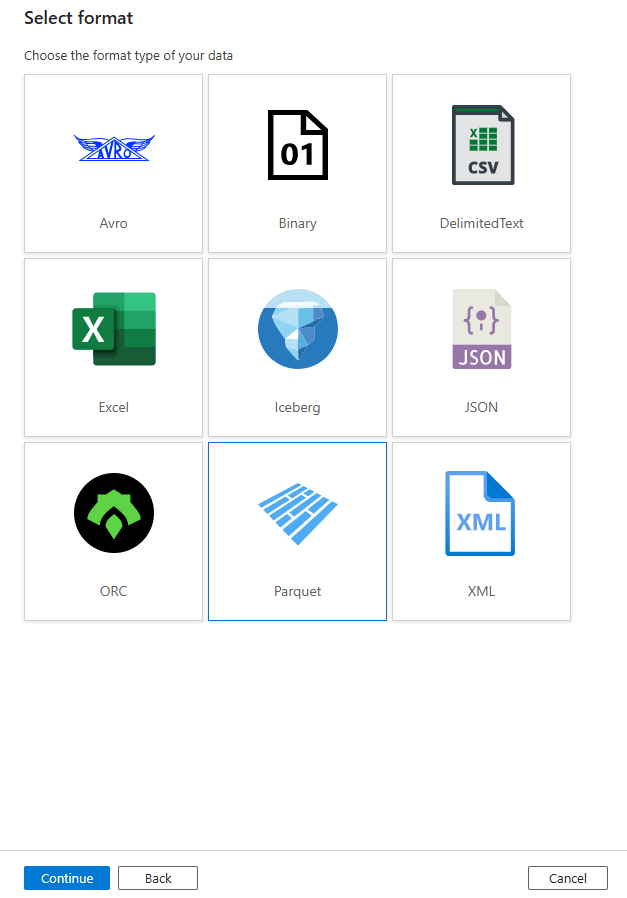
4. Fill in the details:
Browse and select the target location for the Parquet file.
Name: Enter a meaningful dataset name.
Linked Service: Select the one created in Step 1.
Browse and select the target location for the Parquet folder.

Step 4: Create the Copy Activity Pipeline
Now that we have both the source (JSON) and target (Parquet) datasets, we’ll create a Copy Activity pipeline.
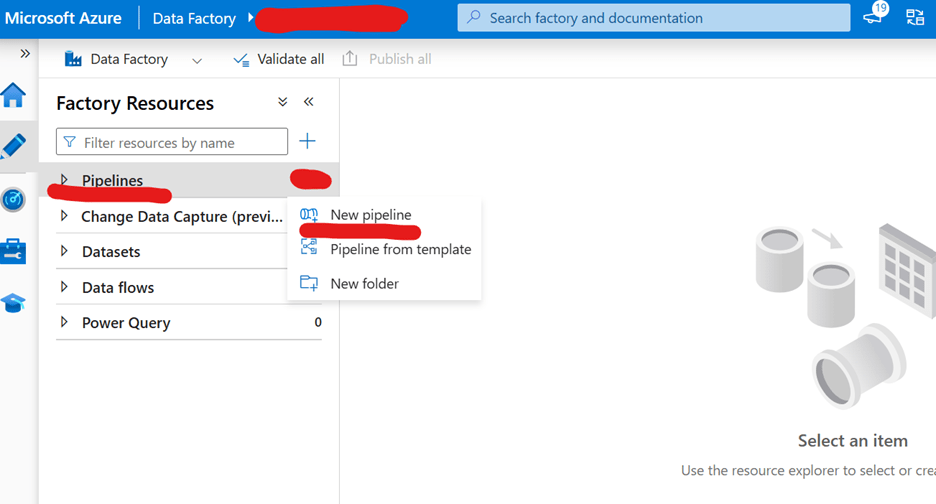
1. Click on the three dots (More options) under Pipeline, then select New Pipeline.
2. Name it JSON to Parquet.
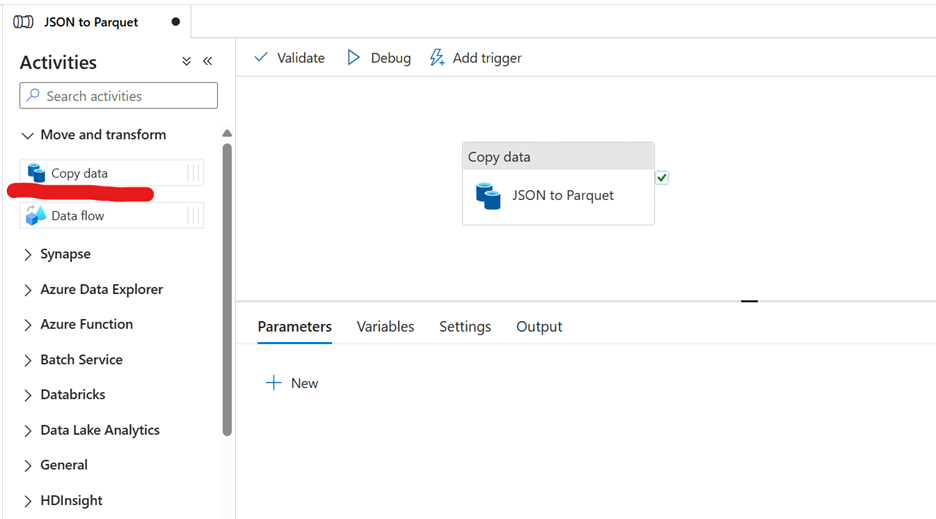
3. Search for Copy in the Activities search box and drag the Copy Activity to the design pane.
4. Click on the Copy Activity box and rename it JSON to Parquet.
Step 5: Configure the Copy Activity
Set Up the Source (JSON)
1. Click on Source in the Copy Activity settings.
2. Select the JSON Dataset created earlier.
3. Make sure the Wildcard Path correctly points to the folder where the JSON files are stored.
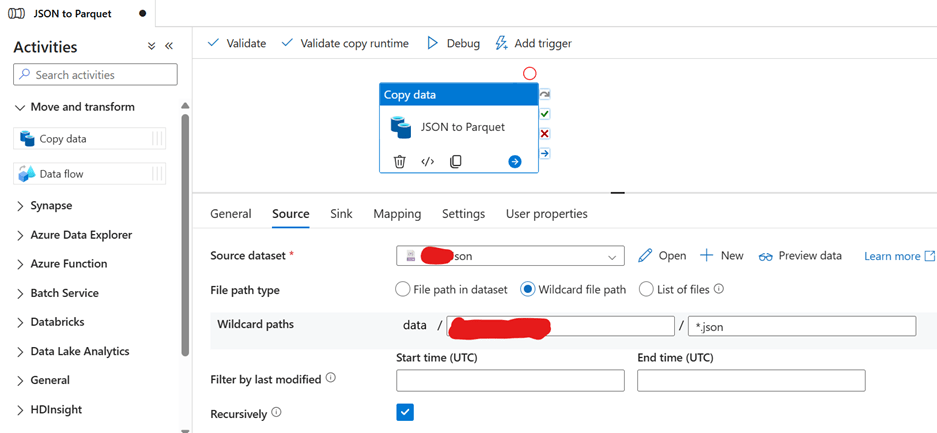
Set Up the Destination (Parquet)
1. Go to the Sink tab.
2. Select the Parquet Dataset created earlier.
3. Set Copy Behaviour to Preserve Hierarchy.
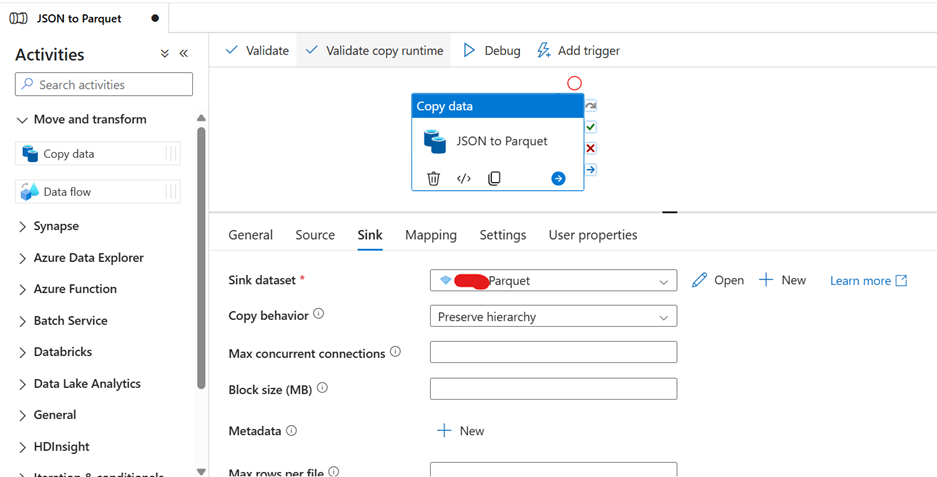
Set Up Mapping
1. Go to the Mapping tab and click Import Schema.
2. Ensure that values are correctly mapped.
3. Check that the Collection Reference is correctly assigned.
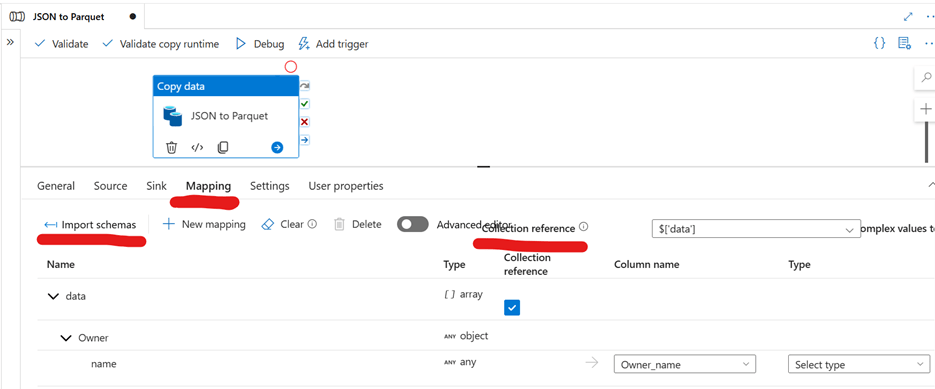
4. Assign data types for the target columns.

Step 6: Run and Publish the Pipeline
1. Click Debug to test the pipeline and verify if the copy process works correctly.
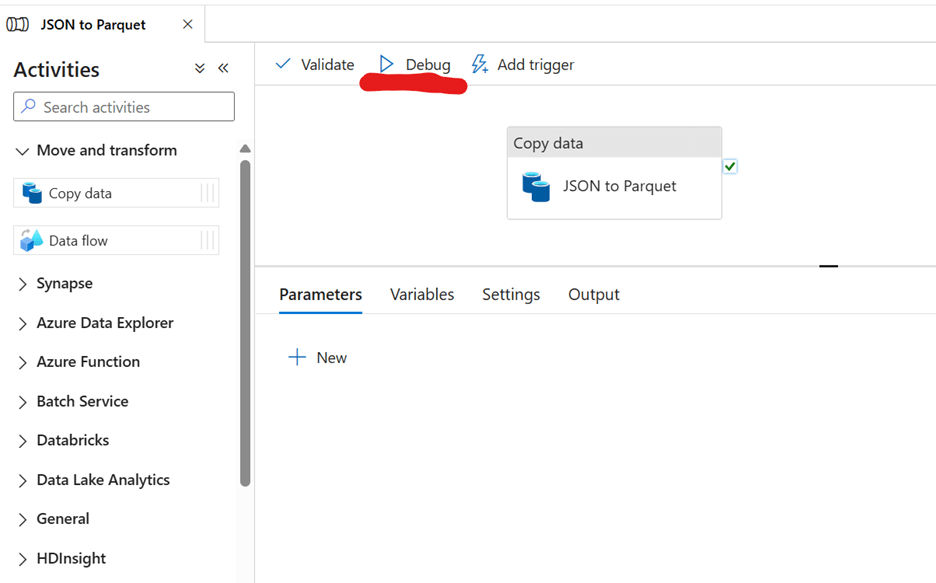
Once the Debug is successful, congratulations! You’ve successfully copied data from JSON to Parquet in Azure Data Lake.
2. Finally, click Publish to save and deploy your pipeline.

Conclusion
That’s it! You’ve now set up an automated process to convert JSON data into Parquet format in Azure Data Lake using Azure Data Factory.
With this setup, your data will be easier to query, more efficient in storage, and faster to process, making it ideal for analytics and reporting.
If you have any questions, feel free to drop them in the comments below! Happy data engineering!
Ready to take your skills to the next level? Click here for my Python book, here for my Machine Learning book, and here for my SQL book—now available on Kindle!
 Ization
stylish! 76 2025 How to Extract HubSpot Data to Azure Data Lake Using Azure Data Factory spectacular
LikeLike