Are you looking for a simple way to copy data from Zoho to Azure Data Lake? You’re in the right place!
With Azure Data Factory (ADF), you can automate the process of copying data from Zoho’s API to Azure Data Lake Storage Gen2, making it easier to store and analyze your data.
This guide will walk you through the setup step by step, even if you’re new to ADF! By the end, you’ll have a working pipeline that copies data from Zoho and saves it as a JSON file in your Data Lake.
Step 1: Open Azure Data Factory
1. Go to the Azure Portal.
2. Open Azure Data Factory.

Step 2: Create a Linked Service for Zoho (HTTP Connection)
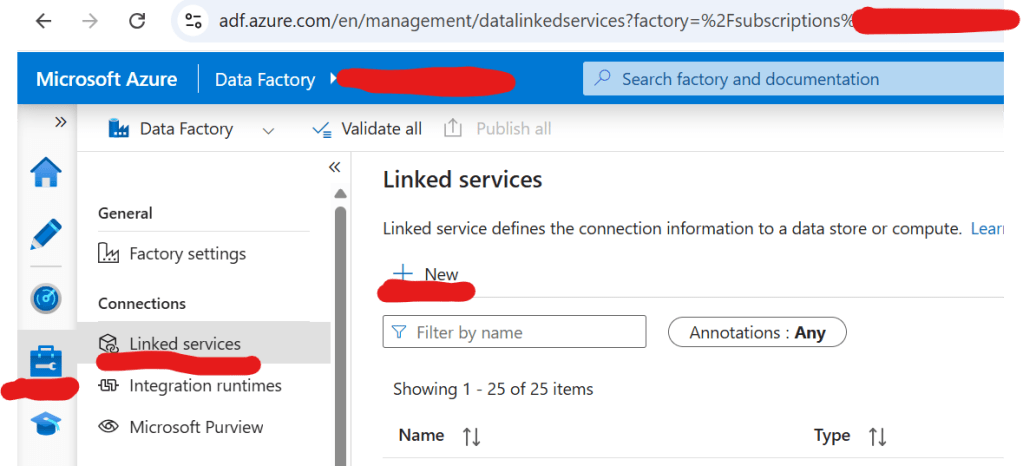
1. Click on the Suitcase image.
2. Click on Linked Service, then New.

3. Type HTTP in the search box, select HTTP, and click Continue.

4. Fill in the details:
Name: Enter a meaningful name.
Base URL: Enter the Zoho API endpoint.
Authentication: Select Anonymous.
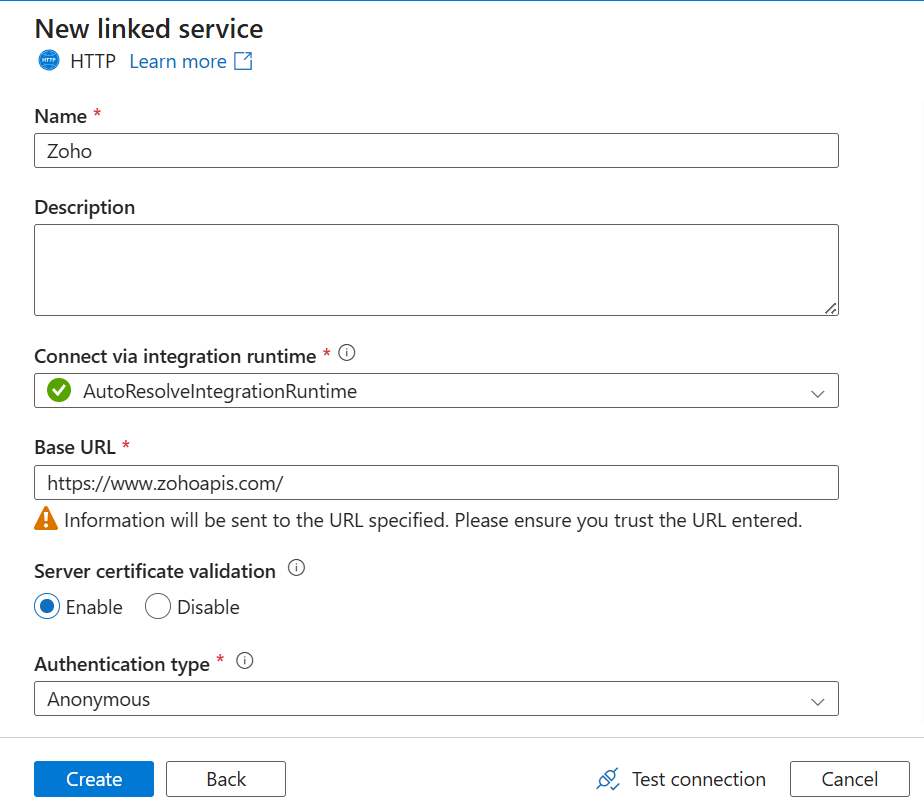
5. Click Create.
Step 3: Create a Dataset for Zoho Data
1. Click on the Pencil image.
2. Click on Dataset, then New Dataset.

3. Type HTTP in the search box, select HTTP, and click Continue.

4. Select Format as JSON, then click Continue.

5. Fill in the details:
Name: Choose a relevant name.
Linked Service: Select the HTTP linked service you just created.
Relative URL: Enter the Zoho API endpoint.
6. Click OK.

Step 4: Create a Linked Service for Azure Data Lake
1. Click on the Suitcase image.
2. Click on Linked Service, then New.
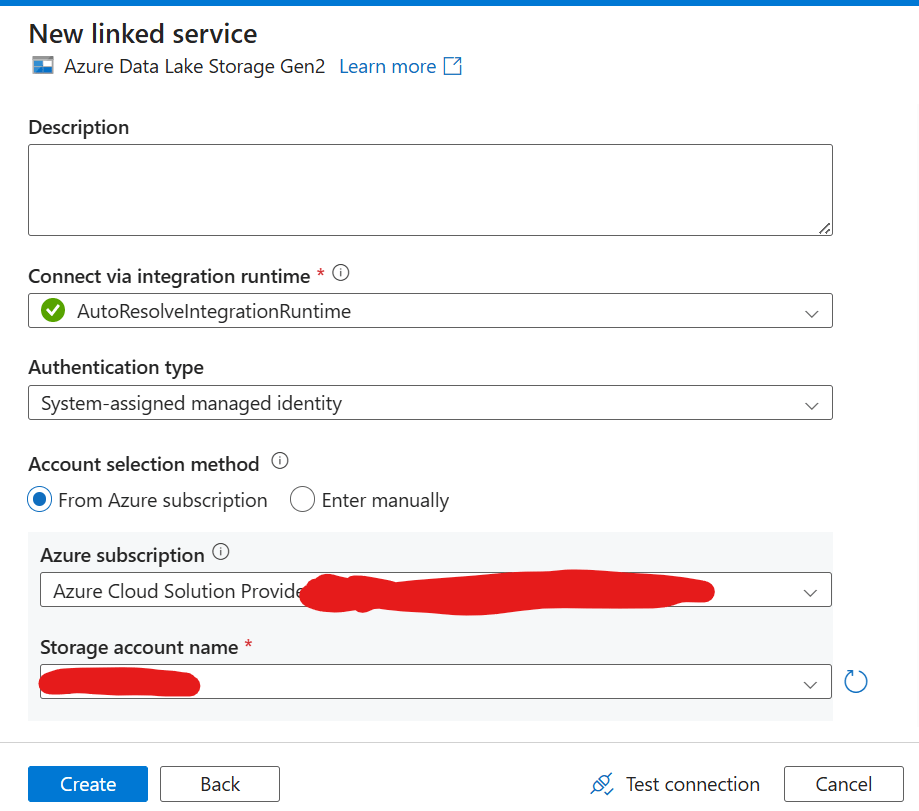
3. Search for Azure Data Lake Storage Gen2, select it, and click Continue.

4. Fill in the details:
Name: Enter a descriptive name.
Authentication Method: Choose the appropriate method.
Storage Account Name: Enter your Azure Data Lake account.
6. Click Create.
Step 5: Create a Dataset for Azure Data Lake
1. Click on the Pencil image.
2. Click on Dataset, then New Dataset.

3. Search for Azure Data Lake Storage Gen2, select it, and click Continue.

4. Select Format as JSON, then click Continue.

5. Fill in the details:
Name: Choose a relevant name.
Linked Service: Select the Azure Data Lake linked service.
Browse and choose the location to store the JSON file.
6. Click OK.

Step 6: Create the Copy Pipeline
1. Click on the three dots next to Pipeline, then click New Pipeline.

2. Enter a name for the pipeline.
Step 7: Set Up API Authentication (Refresh Token & Access Token)
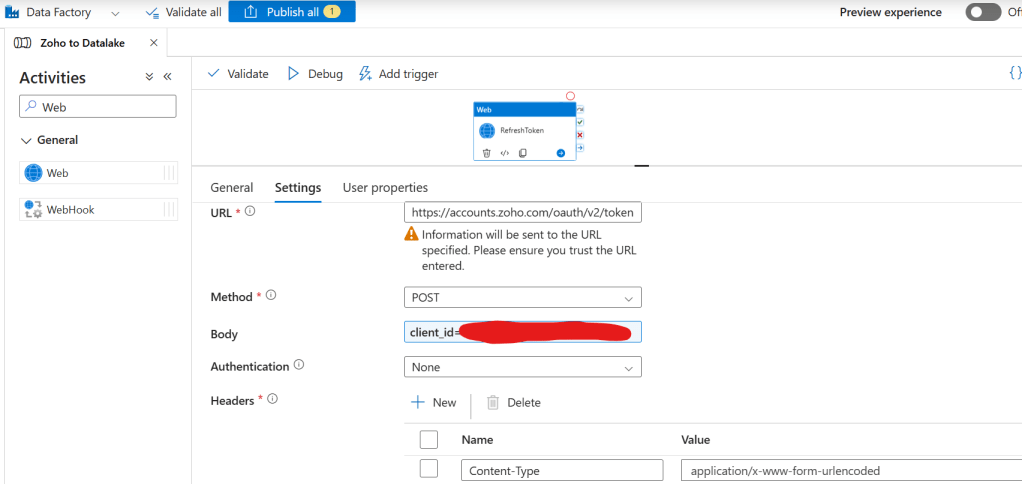
1. Search for Web in the Activities search box.
2. Drag the Web Activity to the drawing pane and rename it Refresh Token.

3. Fill in the required details to get the refresh token.
URL: https://accounts.zoho.com/oauth/v2/token
Method: POST
Body: client_id=<Your Client ID>&client_secret=<Your Client Secret>&grant_type=refresh_token&refresh_token=<Your Refresh Token>
Authentication: None
Headers:
Content-Type : application/x-www-form-urlencoded
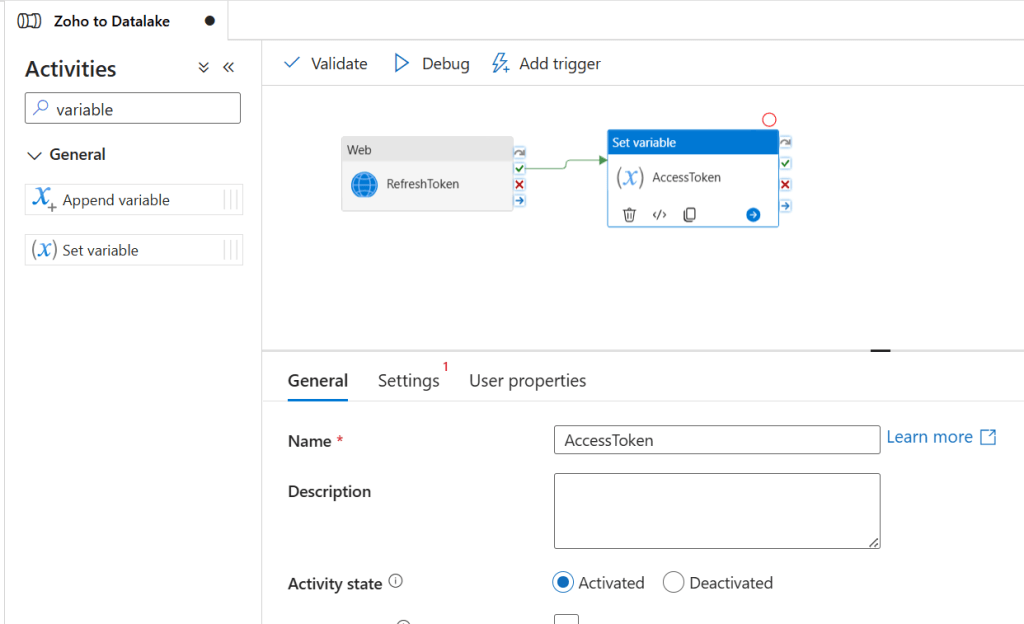
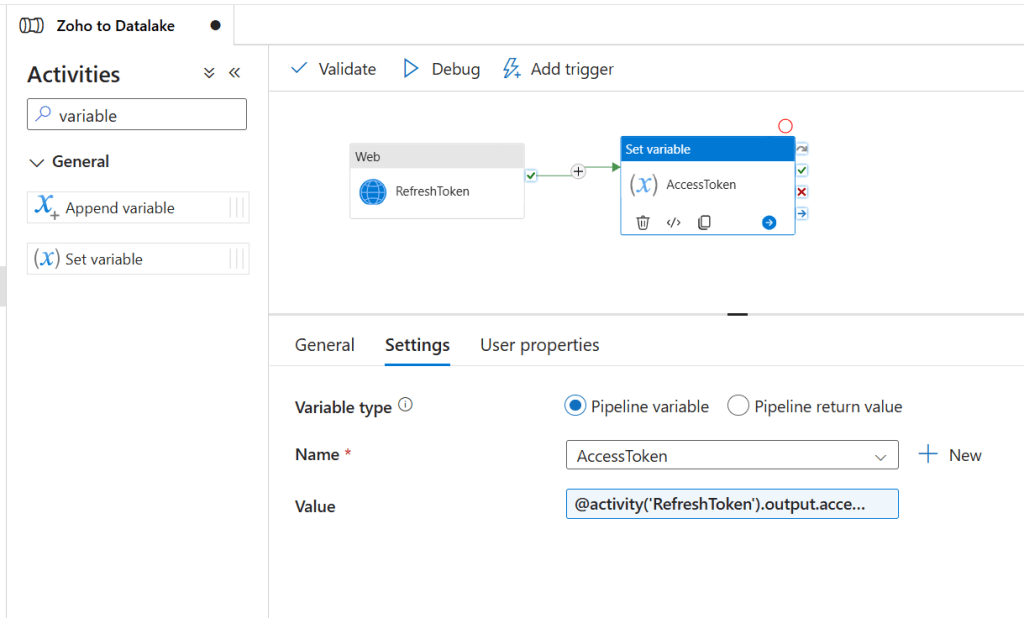
4. Search for Variable in Activities and drag Set Variable to the drawing pane.
5. Rename it AccessToken.
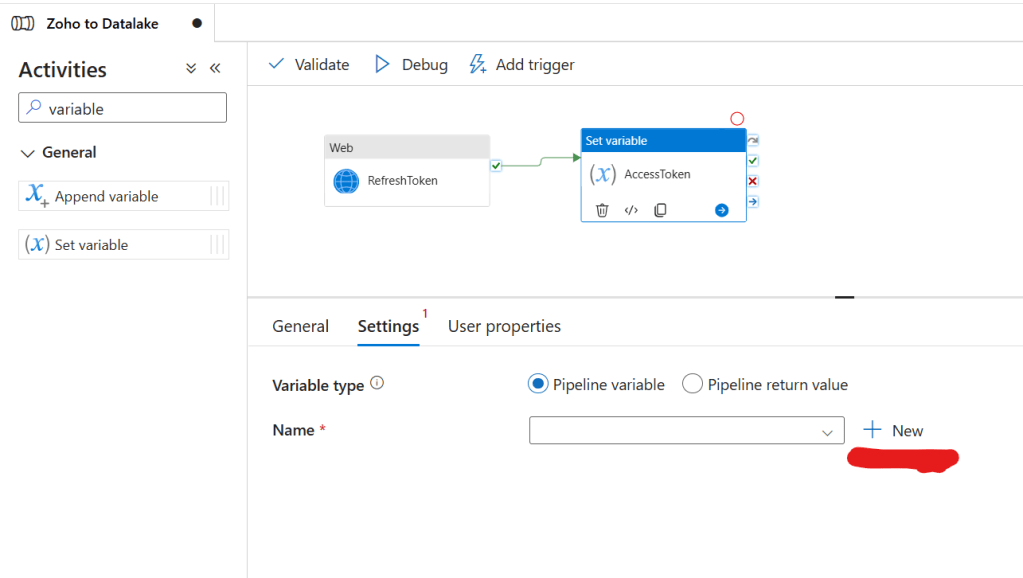
6. Click on AccessToken, go to Settings, and click New.
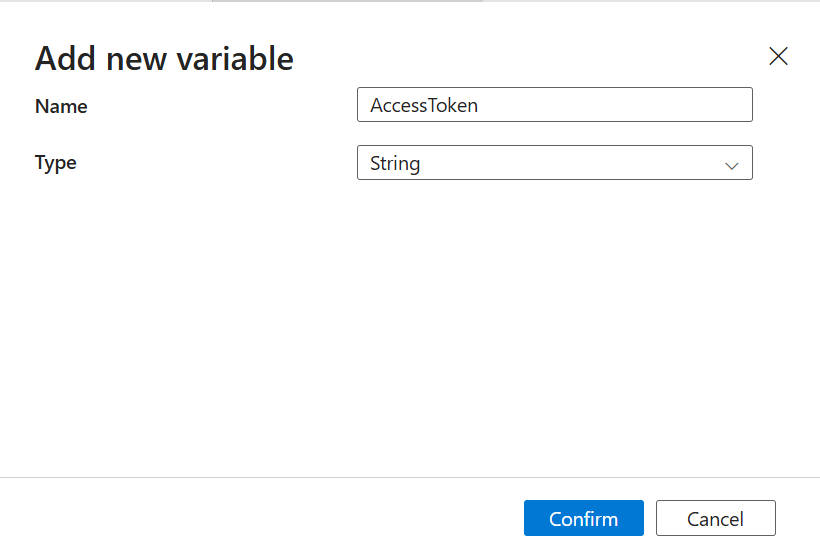
7. Enter AccessToken as the name, then click Confirm.
8. Fill in the Variable Value.
Value: @activity(‘RefreshToken’).output.access_token
Step 8: Copy Data from Zoho to Azure Data Lake
1. Search for Copy in the Activities search box.
2. Drag the Copy Activity to the drawing pane and rename it Zoho to JSON.
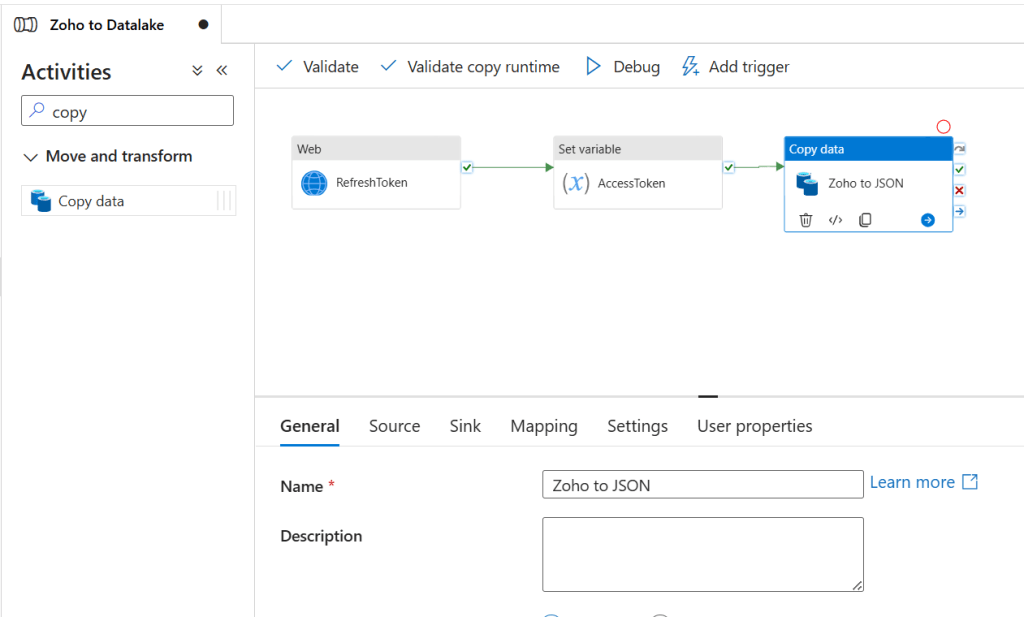
3. Click on Copy Activity, go to Source, and select Zoho HTTP Dataset.
4. Enter the required details.
Source dataset: The Dataset you created for Zoho.
Request method: GET
Additional headers:
Authorization: @{concat(‘Bearer ‘, activity(‘RefreshToken’).output.access_token)}Accept: application/json
5. Go to Sink, select Zoho JSON Dataset, and set Copy Behaviour to Preserve Hierarchy.

Step 9: Test and Deploy the Pipeline
1. Click Debug to test if everything is working correctly.

2. If the test is successful, click Publish to deploy the pipeline.

Congratulations! You’ve successfully set up Azure Data Factory to extract data from Zoho and store it in Azure Data Lake. This pipeline ensures seamless, automated data integration, allowing you to leverage Azure’s powerful analytics capabilities for insights.
What You’ve Achieved
- Set up Azure Data Factory to copy data from Zoho’s API.
- Configured Linked Services and Datasets for Zoho and Azure Data Lake.
- Created a pipeline to fetch and store Zoho data as a JSON file in Azure Data Lake.
- Implemented authentication to handle API tokens.
Need help? Drop your questions in the comments below! Happy Data Engineering!
Ready to take your skills to the next level? Click here for my Python book, here for my Machine Learning book, and here for my SQL book—now available on Kindle!
 Ization
slick! 25 2025 How to Extract HubSpot Data to Azure Data Lake Using Azure Data Factory fine
LikeLike