When Microsoft calls OneLake the “OneDrive for data”, they’re not exaggerating.
It’s the central storage system powering Microsoft Fabric. OneLake is a single, logical data lake that unifies your organization’s data, regardless of where it comes from.
What Is OneLake?
OneLake is Microsoft Fabric’s built-in data lake, designed to store data in open formats like Delta Parquet and make it instantly available to all Fabric experiences (Lakehouse, Data Factory, Power BI, Real-Time Analytics).
Key traits:
- One copy of data, many uses → No need to move or duplicate datasets for different tools.
- Multi-cloud support → Can connect to Azure, AWS, or on-premises sources.
- Integrated governance → Security and access controls are enforced at the storage level.
OneLake vs. a Traditional Data Lake
| Feature | Traditional Data Lake | OneLake |
| Storage | Blob/object storage, separate from analytics tools | Fully integrated with Microsoft Fabric |
| Data format | Often proprietary or mixed formats | Open format (Delta Parquet) |
| Access control | Managed separately in storage and tools | Centralized RBAC in Fabric |
| Integration | Needs connectors & pipelines | Native, no ETL required for Fabric apps |
| Collaboration | Requires manual sharing setups | Built-in sharing and governance |
In short: OneLake is a data lake with superpowers: native integration, governance, and instant accessibility.
Using Shortcuts to Connect Multiple Sources
OneLake introduces shortcuts, which are like symbolic links in a file system, they point to external data without physically copying it.
Why shortcuts matter:
- No storage bloat from duplicated data.
- Always points to the latest source data.
- Makes cross-cloud access feel local.
Example: You have sales data in AWS S3 and product data in Azure Data Lake. Instead of moving both into Fabric, you create shortcuts in OneLake to each source. Now, both datasets appear side-by-side as if they’re stored in the same lake.
How to create a shortcut:
Step 1: In your Fabric workspace, Click on + New item

Step 2: Search for Lakehouse and click on Lakehouse.
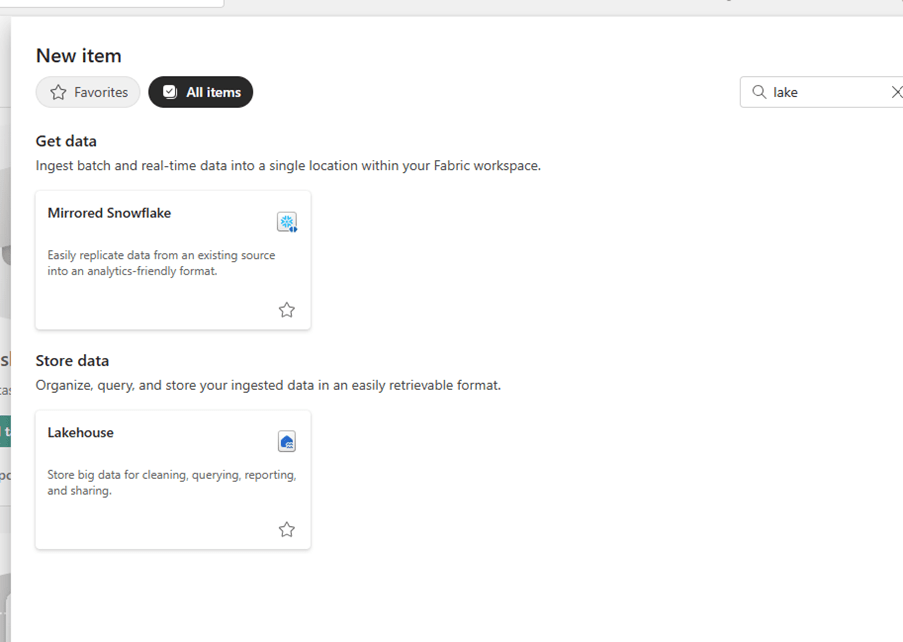
Step 3: Provide the name of the Lakehouse.
Step 4: Click on the Lakehouse.
Step 5: Select New shortcut.

Step 6: Choose the source type (Azure Data Lake Storage Gen2, AWS S3, local, etc.).

Step 7: Provide the connection details and credentials.
Step 8: Save: your shortcut is instantly ready.
Organizing Data for Multi-Team Access
Even though OneLake is one logical storage, you’ll want to structure it for clarity and governance.
Best practices:
- Use folders for domains (e.g., /Sales, /Marketing, /Finance).
- Apply consistent naming: avoid vague labels like data1 or temp.
- Set RBAC permissions at folder/table level to prevent oversharing.
- Document your structure so teams know where to find things.
This way, your analysts, engineers, and data scientists can all work from the same source without stepping on each other’s toes.
Why OneLake Matters In a world where data is spread across clouds, formats, and teams, OneLake provides a single pane of glass for secure, governed, and instantly usable data.
It’s the foundation that makes the rest of Microsoft Fabric possible without the headaches of traditional lake management.
 Ization
Leave a comment