Automating your Power BI dataset refresh can save time and ensure your reports always stay up to date. In this post, we’ll walk through how to trigger a Power BI report refresh directly from Azure Data Factory (ADF) using an App Registration in Azure Entra ID.
Phase 1: Register an Application in Azure
Step 1: Go to the Azure Portal.
Step 2: Navigate to Microsoft Entra ID (formerly Azure Active Directory).

Step 3: Click the Add button and select App Registration.
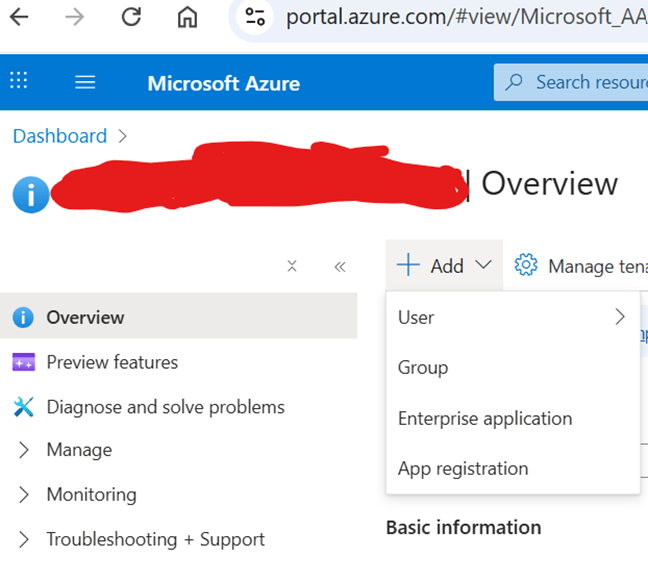
Step 4: Enter a name for your application and click Create.
Step 5: After creation, note the following values from the overview page:
- Application (Client) ID
- Directory (Tenant) ID
You’ll need these later in ADF.
Phase 2: Create a Client Secret
Step 6: From the application’s overview page, go to Certificates & Secrets.
Step 7: Click New Client Secret.
Step 8: Enter a description (e.g., ADF Power BI Refresh Secret) and click Add.
Step 9: Copy the Secret Value and store it securely , you won’t be able to retrieve it again after leaving the page.
Phase 3: Grant Power BI API Permissions
Step 10: In the same application, go to API Permissions.
Step 11: Click Add a Permission → APIs my organization uses.
Step 12: Search for Power BI Service and select it.
Step 13: Choose Application Permissions.
Step 14: Select the available checkboxes for Power BI permissions, then click Add Permissions.
Once granted, you’re done with the Azure app setup!
Phase 4: Build the ADF Pipeline
Step 15: Open Azure Data Factory.
Step 16: In the Author section, click the + icon → Pipeline → Pipeline.
Step 17: Name your pipeline: Power BI Report Refresh.
Create Variables
Create three variables in ADF to store your app credentials:
- ClientID
- ClientSecret
- TenantID
Populate them with the values you noted earlier.
Step 18: Get the Access Token
Step 18: Drag and drop a Web Activity and name it AccessToken.
Settings:
- URL:
@concat(‘https://login.microsoftonline.com/’, variables(‘TenantID’), ‘/oauth2/v2.0/token’)
- Method: POST
- Body:
@concat(
‘grant_type=client_credentials&client_id=’,
variables(‘ClientID’),
‘&client_secret=’,
variables(‘ClientSecret’),
‘&scope=https://analysis.windows.net/powerbi/api/.default’
)
- Headers:
- Name: Content-Type
- Value: application/x-www-form-urlencoded
Step 19: Trigger the Power BI Refresh
Step 19: Drag another Web Activity into the pipeline and name it PBI Dataset Refresh.
Connect it to the AccessToken activity.
Settings:
- URL:
@concat(
‘https://api.powerbi.com/v1.0/myorg/groups/’,
‘<Workspace ID>’,
‘/datasets/’,
‘<Dataset ID>’,
‘/refreshes’
)
- Method: POST
- Body:{}
- Headers:
- Name: Authorization
- Value: @{concat(‘Bearer ‘, activity(‘AccessToken’).output.access_token)}
- Name: Content-Type
- Value: application/json
- Name: Accept
- Value: application/json
Step 20: Test the Pipeline
Click Debug to test your pipeline.
If everything is set up correctly, the pipeline will call the Power BI REST API and trigger a dataset refresh in your specified workspace.
Conclusion
You’ve now successfully automated Power BI dataset refresh directly from Azure Data Factory! This integration is perfect for end-to-end data workflows, for instance, after your data transformations are complete, you can automatically trigger Power BI to refresh reports, keeping everything synchronized without manual intervention
 Ization
Leave a comment